
Help Center
How to manage youth sports registrations and payments
What you will learn
- Read the four numbers at the top, and know which one to watch
- Verify a payment a parent says they made, or reject one that never arrived
- Record a check or a cash payment yourself
- Chase every outstanding balance in one go
- Issue a full or partial refund, and cancel a registration
Learn how to manage youth sports registrations once they start arriving: reading the financial summary, verifying a payment a parent says they made, recording cash and checks, chasing outstanding balances, issuing a refund, and canceling a registration.
Open the program on your dashboard and click Submissions & Financials. This is where you will spend most of your administrative time during a season.
Reading the summary
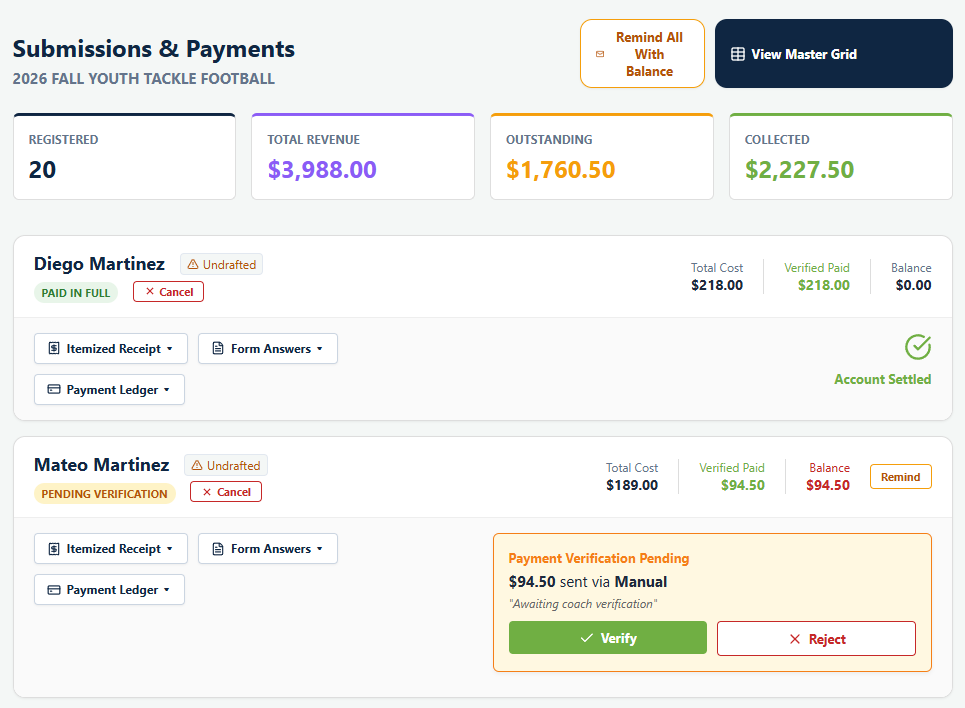
Across the top: Registered, Total Revenue, Outstanding and Collected.
Total Revenue is what everyone owes in total. Collected is what has actually arrived and been confirmed. Outstanding is the gap. That gap is the number worth watching, because it is the money you have already committed against when you ordered uniforms.
Verifying a payment
When a parent pays by card, the money arrives and the registration updates on its own. When they pay by cash, check, Venmo, Cash App, Zelle or PayPal, they tell Playbook Logix they have paid and it sits as Payment Verification Pending until you confirm it.
You get two buttons: Verify and Reject. Verify once you have actually seen the money. Reject if it never arrived, which puts the balance back so the parent can try again.
Recording a payment yourself
For a check handed to you at practice, use Record Manual Payment on that family's row. Enter the amount and apply it. It is recorded as received immediately, because you are the one saying so.
Partial payments are fine. A family paying half now and half in May is two entries against the same registration, and the balance moves each time.
The payment ledger
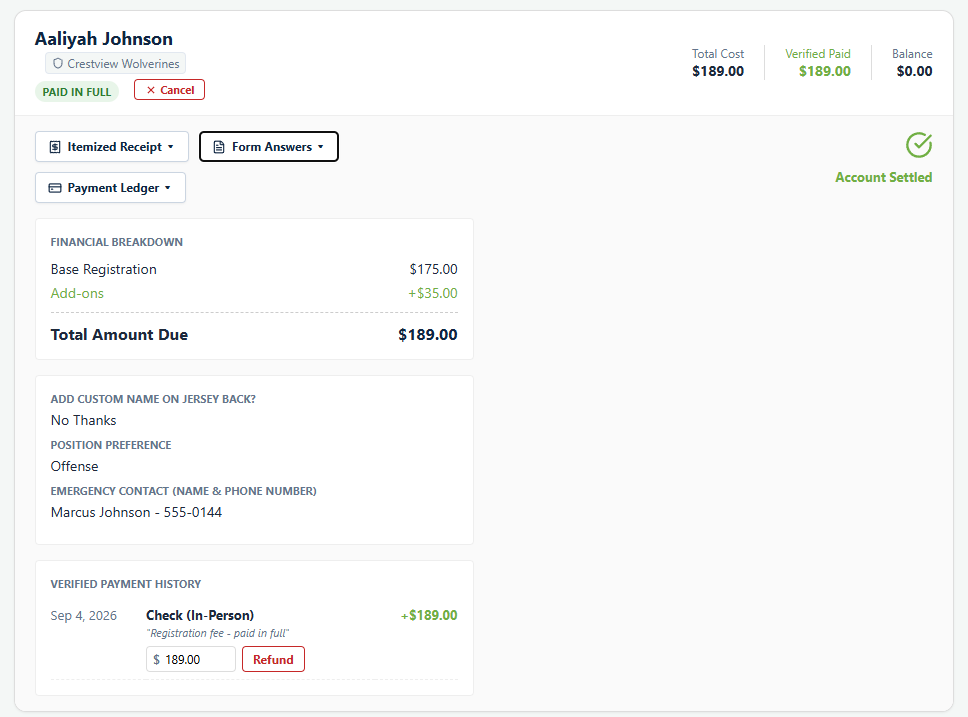
Each registration has an Itemized Receipt showing how the total was built, and a Payment Ledger showing every movement of money against it.
Playbook Logix never edits a payment. Every payment, refund and correction is a new line. That means the ledger is a history rather than a current state, and if a number ever looks wrong you can see exactly how it got that way.
Chasing balances
Remind on a single row emails that family about their balance. Remind All With Balance does the whole program at once, one email per parent rather than one per child, so a family with three players gets one message listing all three.
Send the first reminder earlier than feels necessary. Most unpaid balances are not refusals, they are a parent who meant to pay in February.
Refunds
Refund appears on each recorded payment. Enter an amount, or accept the full remaining amount.
A card payment refunds through Stripe and the money goes back to the card. A cash or check payment cannot, so the refund is recorded in the ledger and you hand the money back yourself. The button tells you which is about to happen before you confirm.
Partial refunds are supported, which is what you want for a player who leaves mid season. Refunding does not cancel the registration, because those are different decisions and a partial refund usually is not a withdrawal.
Canceling a registration
Cancel removes the player from their team and takes them out of your totals. Their payment history stays, so the money is still accounted for.
Restore puts them back. A canceled registration is not deleted, which matters when a family changes their mind in week two.
Cancel and refund are separate on purpose. A family who withdraws in week one might get everything back; a family who withdraws in week nine might get nothing. Playbook Logix does not decide that for you.
Getting the data out
For anything the summary screen will not answer, use the Master Data Grid. It puts every registration in this program on one row, including the answers to your own form questions, and lets you choose columns, filter and export a CSV. There is also a Save PDF button, which opens your browser's print dialog rather than building a file. The grid is where you build the roster spreadsheet for the uniform order, or the list of players still missing a physical.
It is per program rather than organization wide, so a club running three seasons at once works through three grids. See the Master Data Grid.
What happens next
Once families have registered and paid, the next job is splitting them into teams. See drafting players onto teams.
For the money side in more depth, see connecting Stripe, accepting cash, checks and Venmo, and what card payments cost.
Common questions
Why do I have to verify payments myself?
Can a family pay in more than one installment?
What happens to the money if I cancel a registration?
Can I refund only part of a payment?
How do I get a list of everyone who has not paid?
Last updated September 22, 2026.
Ready to run your season on this?
Playbook Logix is free to start, and no credit card is needed.