
Help Center
How to create a youth sports registration form
What you will learn
- Choose between the seven answer types, and know when each one fits
- Write choices that sort and count cleanly in a spreadsheet
- Attach a price to a choice, so an opt-in is a question rather than an add on
- Set a short column heading for exports
- Decide what to make required, and what to leave off entirely
Takes about 15 minutes.
Learn how to build the registration form parents fill in when they sign a child up. This guide covers the seven question types Playbook Logix offers, how to attach a price to a choice, which questions to make required, how to write choices that export cleanly to a spreadsheet, and what to leave off.
Every program gets its own form. The player profile already holds the player's name, date of birth and age, along with optional height and weight, so the form is for everything else your league needs: shirt size, medical notes, a preferred practice night, who is allowed to collect the child. The builder reminds you of this at the top of the page, and it is worth taking seriously.
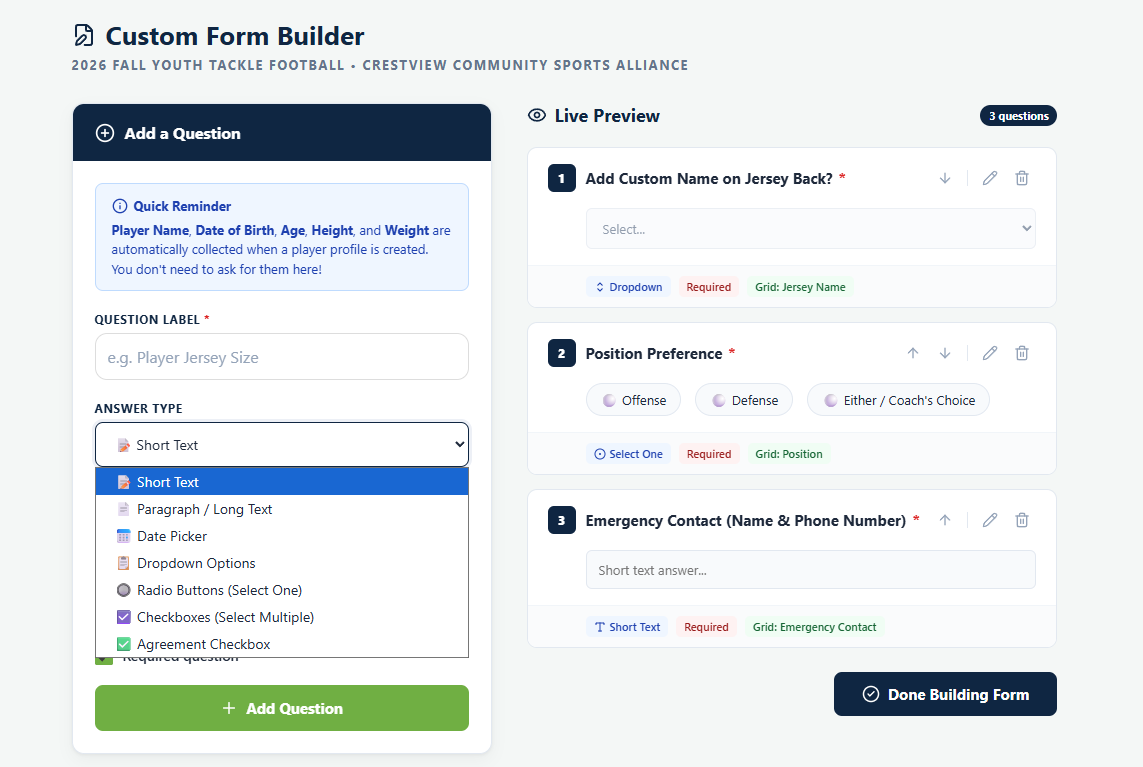
Open the program on your dashboard and click Edit Program Form. The page is called the Custom Form Builder, and it is split in two: you add questions on the left, and a Live Preview on the right shows the form exactly as a parent will see it.
Before you start
- A program already created. See creating a registration program
- A list of what you actually need from families this season
- Your shirt sizes, divisions or practice nights, if you plan to ask about them
Add a question
Question Label is what the parent reads. Answer Type decides the kind of input. Answer Choices appears underneath for the three types that need a list.
Pick the answer type
There are seven, and they are worth choosing deliberately.
Short Text
One line. Good for a jersey name, a school, an emergency contact. If the answer is longer than a few words, this is the wrong type and the parent will run out of room.
Paragraph / Long Text
A box that grows. Use it for medical notes, allergies, or anything where you would rather have too much detail than too little. Bear in mind that free text cannot be filtered or counted later, so do not use it for something you will want to sort by.
Date Picker
A calendar. Use it for a physical exam date or an insurance expiry, not for the child's birthday, which Playbook Logix already holds on the player profile.
Dropdown Options
A fixed list in a menu. Reach for this whenever the answer has a known set of possibilities and the list is long enough that showing every choice would clutter the form. Shirt sizes, divisions, how the family heard about you.
Radio Buttons (Select One)
The same idea as a dropdown, but every choice is visible at once and the parent picks one. Better than a dropdown when there are only three or four choices and you want people to actually read them, which is why a question like position preference belongs here.
Checkboxes (Select Multiple)
A list where more than one answer can be true. Which practice nights you can make, which volunteer jobs you would consider, which sessions of a camp you want.
Agreement Checkbox
A single box the parent ticks. Use it for an acknowledgment, a code of conduct, or a photo permission.
An agreement checkbox is not a signed waiver. If you need a real signature on a release, use the waivers feature instead, which records who signed, when, and against which document.
Write the choices
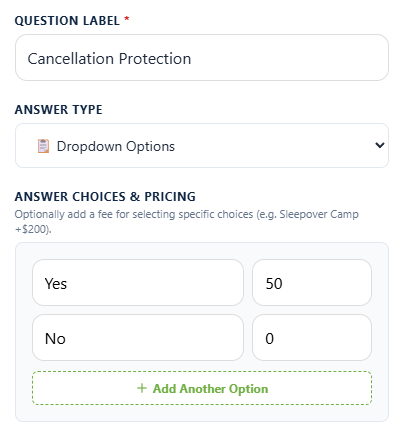
For a dropdown, radio buttons or checkboxes, the Answer Choices box appears. Type one choice per row and click Add Another Option for each extra one.
Keep choices short and keep them consistent. Youth S, Youth M, Youth L, Adult S, Adult M sorts and counts cleanly. small, Small, S, sm does not, and you will be fixing it by hand in a spreadsheet in March.
Charging for a choice
Next to each choice there is a price box. Leave it empty, or put a zero in it, and the choice is free. Put a number in it and picking that choice adds that amount to the family's total: a sleepover week that costs more than a day camp, a jersey in a size you have to order specially, a second practice shirt.
The pattern worth stealing is a plain yes or no question where yes costs something. A dropdown called "Cancellation Protection" with Yes at $50 and No at $0 reads to a parent as a decision rather than a sales pitch, and you end up with a clean column telling you exactly who took it.
This is worth knowing about because it saves you from a common mess. The alternative is a separate add on plus a form question asking the same thing, which gives you two records of one decision and no guarantee they agree.
Pricing on choices is a premium feature. If your plan does not include it the box is not there, and the choices are simply free.
Set the spreadsheet alias
Spreadsheet Alias is optional and is the short column heading used in the Master Grid and in exports. "Jersey Size" is a better column heading than "What size shirt does your player wear?", and it is the difference between an export you can work with and one you spend an hour reformatting.
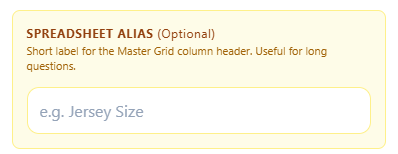
The Live Preview shows the alias under each question, so you can see what your spreadsheet will look like before anybody fills the form in.
Decide what is required
Leave it on only when a registration is genuinely incomplete without an answer. Every required field is another reason for a parent to abandon the form on a phone in a parking lot.
A useful test: if a parent left this blank, would you chase them for it? If the honest answer is no, it should not be required, and possibly should not be on the form at all.
When the form is finished, click Done Building Form.
What not to put on the form
Anything Playbook Logix already has. Player name, date of birth, age, height and weight belong on the player profile, and contact details come from the parent account. Asking again means two versions that disagree.
Payment details. Never ask for a card number on a registration form. Card payments go through Stripe, which handles the card so you never see it.
Anything you will not act on. A question nobody reads is a question that makes every parent's signup slower for no reason.
For a fuller answer on what belongs, see what information a youth sports registration form should collect.
Changing the form after registration opens
You can add questions at any time. Families who already registered will not have answered a question you added afterward, so their row is blank rather than wrong. If the new question matters, ask those families directly rather than assuming the gap is a no.
Take more care with a priced choice. Registration totals are worked out once and frozen, so changing a price later does not change what anyone already owes.
If you want parents to be able to go back and correct their own answers, turn on form edits in the program settings. Otherwise only an administrator can change a submitted registration.
Common questions
How many questions should a registration form have?
What is the difference between a dropdown and radio buttons?
Can I charge extra for a particular answer?
Can parents change their answers after registering?
Will my questions appear in the export?
Can I use a checkbox instead of a waiver?
Last updated September 21, 2026.
Ready to run your season on this?
Playbook Logix is free to start, and no credit card is needed.