
Rosters & Team Management
A roster is just your list of who's on the team: players, coaches, and the parents who help out. Here's how you build one, how people get added, and what you can record about each player.
Getting people onto the roster
You don't have to pick one. Most teams end up using all three over a season.
- They register and land there automaticallyThe normal path. A family signs up for your season and the player appears on the roster, no re-typing anything.
- You add them yourselfType in a name and you're done. Useful for the kid who joins in week three, or a coach who'll never fill in a form.
- You email them an inviteSend an invitation and they set up their own account. Their details arrive filled in correctly, because they typed them.
There's also a join code: a short six-character code unique to each team. Give it to a parent and they can attach their child to the right team themselves, which saves a lot of back-and-forth when a family has kids on three different teams.
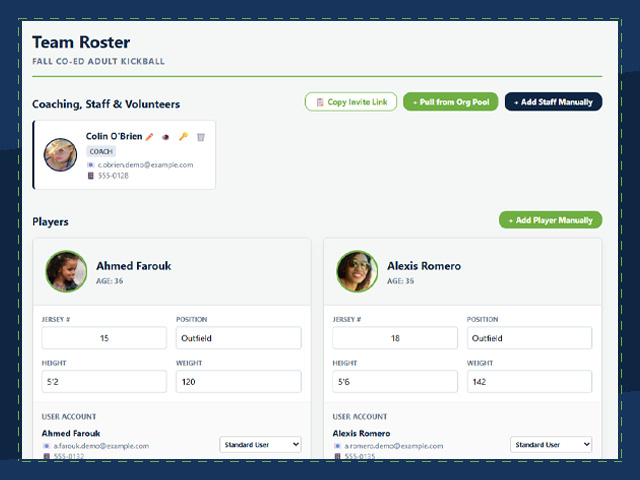
More than a list of names
Each player on the roster carries the details a coach actually reaches for during a season.
Player details
Jersey number, position, height, and weight: the things you need when you're setting a lineup, ordering uniforms, or filling in a league form.
These sit on the roster itself, so they can differ per team. A player on two teams can wear two different numbers without a conflict.
The family behind the player
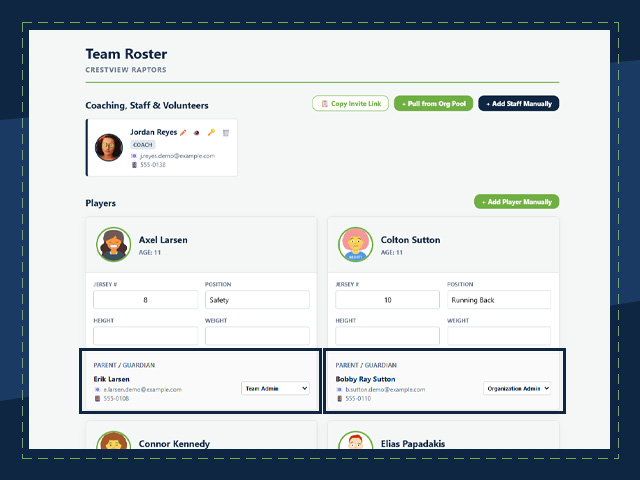
Every player is linked to their parent's account, so contact details are one click away instead of buried in a registration form you'd have to go dig up.
That's also how messages, schedule changes, and payment reminders find the right adult.
Who appears publicly
Any roster entry can be hidden from public view. If a family doesn't want their child's name on a public team page, you can honor that without removing them from the team.
Coaches, managers, and helpers
A roster holds four kinds of people: players, coaches, managers, and volunteers. You can also give someone a custom title, so "Team Mom," "Equipment Manager," or "Assistant Coach, Defense" shows up the way your team actually says it.
The role isn't only a label. Adding somebody as a coach or manager is what lets them do things: take attendance, post to the message board, edit the schedule. And you control that in detail: each staff member gets their own set of six switches covering emails and texts, schedule and events, volunteers, roster and players, the team page, and team settings.
So an assistant coach can be given the schedule but not the ability to message every family, and a team parent can manage volunteers without seeing anything else. Organization & Staff Management covers how this works across a whole club.
One team, a camp, or a whole league
Rosters work the same way in all three. The only difference is how many of them a season has.
A camp or clinic
One list of everyone enrolled. A three-day skills camp doesn't need to be split into pretend teams just to track who's coming.
A single team
One season, one team, one roster. This is the fastest way to start if you coach one team and don't run a club. You can be taking sign-ups the same afternoon.
A full league
As many teams as the season needs, each with its own roster, all drawn from the same pool of registrations. Everyone signs up once and you sort them into teams afterward.
You archive the season, and its rosters go with it. Nothing is deleted. Last year's teams, results, and payment history stay exactly where they are if you need to look something up. They just stop cluttering your active team list. Next season starts as a clean page, and returning families still have their profiles.