
Help Center
How to add coaches and volunteers
What you will learn
- Share one application link and let people apply themselves
- Read what somebody applied for before you approve it
- Assign approved staff to the teams they actually help with
- Add a coach directly when they will not use the link
Takes about 5 minutes to send, then as applications arrive.
Learn how to bring coaches and volunteers into a youth sports organization in Playbook Logix: sharing an application link, approving who applies, and putting somebody on a specific team.
There are two steps, and keeping them separate is what makes the whole thing manageable. People join your organization as staff first. Then you assign them to the teams they actually help with. One coach can end up on three teams without applying three times.
Before you start
- An organization with at least one team
- Somewhere to share the link, such as your registration announcement
- A decision on who is running each team
Share the application link
Open Staff & Volunteer Management for your organization. Near the top is the Public Application Link, with the note "Send this link to let people apply to be a coach or volunteer."

Put it in your registration announcement, on your website, or in the email you send asking for help. Anybody who follows it picks what they are offering to do and applies. They do not get access by applying, so the link being public is not a risk.
Approve the people who apply
Applications land under Pending Applications, with a red count so you cannot miss them. Each card shows who applied, what they applied as, and what they applied for.
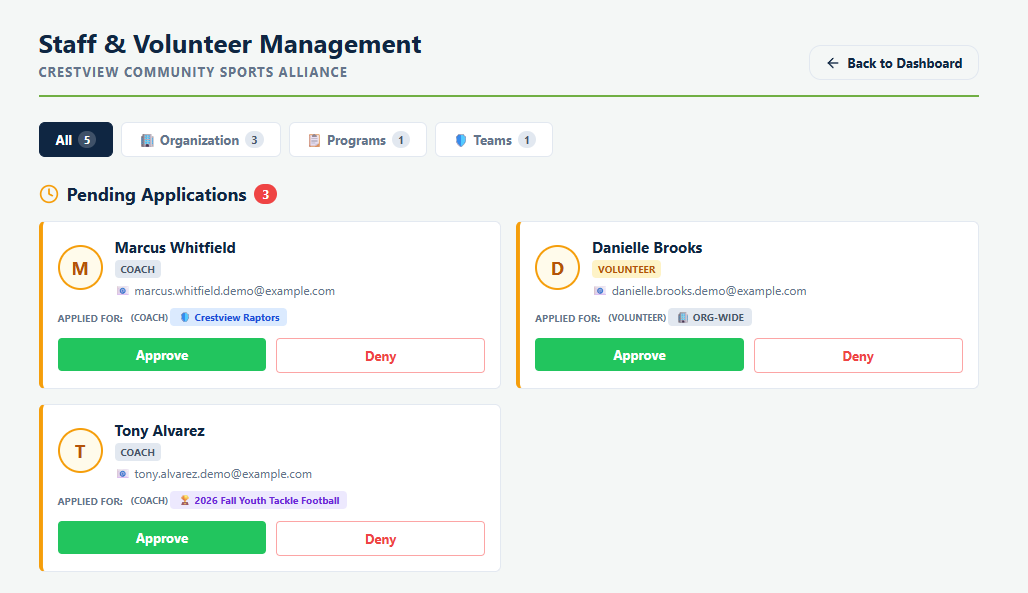
Applied For is the line that matters. Somebody can apply to help with one team, with a whole program, or across the entire organization, and the badge tells you which. Approving grants exactly that scope.
Approve puts them in your staff pool. Deny turns the application down. The tabs above let you filter by scope when the list gets long, and the counts beside them tell you how many sit in each.
Put them on a team
Open the team's roster and use + Pull from Org Pool. Pick the person, choose whether they are a coach or a volunteer, and give them a custom title if the role words are not specific enough.
The list you are choosing from is the organization's approved staff, plus anybody already connected to this team. That is why the two steps are separate: approve once, then assign to as many teams as you need.
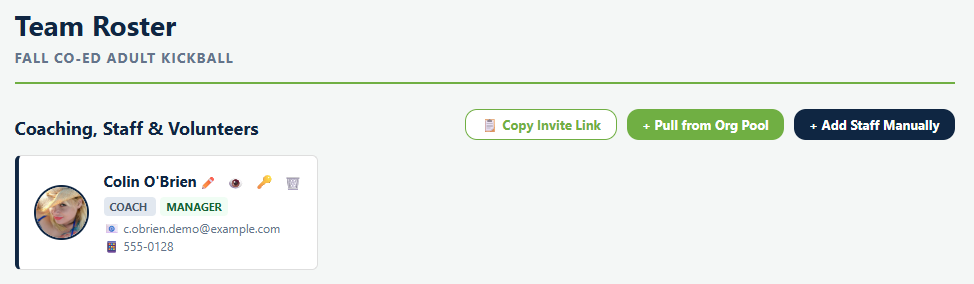
Somebody can hold more than one role on a team. A person who coaches and also manages the schedule gets both badges on one card rather than appearing twice.
Adding somebody without the link
+ Add Staff Manually skips the application entirely. Use it for the assistant coach standing next to you who is not going to open an email. If they have no Playbook Logix account, one is created and they are sent an invitation.
The roster also has its own Copy Invite Link, which is the same idea scoped to the team you are looking at.
What they can actually do
Being on a team as staff does not by itself let somebody email parents or edit the roster. Each staff member has six permissions you turn on individually, and they all start off. See team staff permissions.
Common questions
What is the difference between staff and a team assignment?
Is it safe to share the application link publicly?
Can somebody apply to help with just one team?
How do I add a coach who will not use the link?
Can one person be both a coach and a manager?
Last updated September 21, 2026.
Ready to run your season on this?
Playbook Logix is free to start, and no credit card is needed.