
Help Center
How to manage your team roster
What you will learn
- Record jersey numbers and positions, and know where each field lives
- Add a player who never registered online, and what that costs you
- Promote a parent to team admin, and when not to
- Remove somebody from a team without deleting anything else
Takes a couple of minutes.
Learn how to run a team roster in Playbook Logix: jersey numbers and positions, adding a player who never registered online, promoting a parent to a team admin, and taking somebody off.
The roster is the team's working page. Drafting decides who is on the team; this is where you record everything about them once they are. Open the team from your dashboard and click into its roster.
Before you start
- A team with players drafted onto it. See drafting players onto teams
- Your jersey numbers, if you are assigning them now
What is on the page
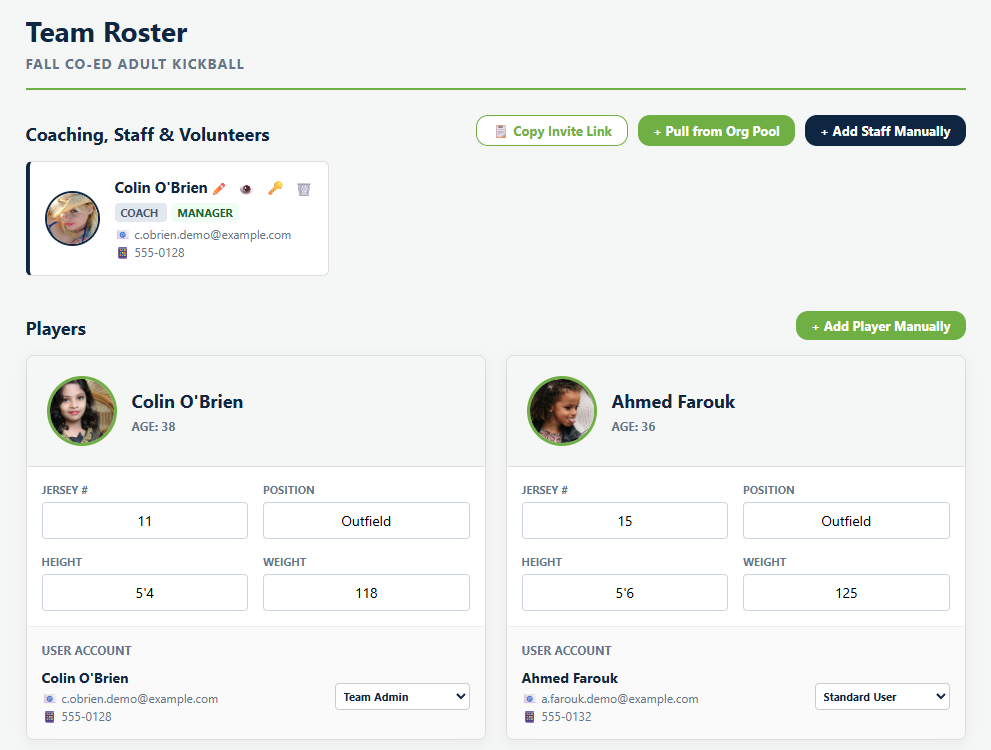
Three sections, in this order.
- Coaching, Staff & Volunteers, a card for each adult on the team.
- Players, a card for each player with their details.
- Upcoming Events Attendance, so you can see who has said they are coming without leaving the page.
Jersey numbers and positions
Each player card carries Jersey #, Position, Height and Weight, and you type straight into them. Fill in what you need and save the roster when you are done.
Jersey number and position belong to this team, so a player who plays two sports in your organization can wear 11 for one and 24 for the other. Height and weight belong to the player profile instead, because those are facts about the person rather than about the team, and they follow the player everywhere.
Adding a player who did not register online
+ Add Player Manually puts somebody on the roster directly. Use it for the family who handed you a check at practice, the player you agreed to take after the deadline, or a grandparent who was never going to fill in a form on a phone.
Making a parent a team admin
Under User Account on a player card there is a dropdown set to Standard. Changing it to Team Admin gives that parent administrative access to this team.
This is the quiet one worth understanding. A team admin is not a volunteer with a few permissions; they can manage the team the way you can. Use it for the parent genuinely running the team with you, and use staff permissions for everybody else, which give you control over exactly what somebody can touch. See team staff permissions.
You can only hand out access you hold yourself, so the dropdown offers fewer options to a coach than to an organization administrator.
Taking somebody off
Removing a player from a roster takes them off this team only. It does not delete their account, their player profile, their registration or anything they paid, and it does not touch any other team they are on.
If somebody has left the program entirely rather than just this team, cancel their registration instead, which is what removes them from your numbers. Refunding is a separate decision again.
What happens next
A roster with players on it and nobody to run it is half a team. Next: adding coaches and volunteers.
Common questions
Where do jersey numbers live?
Why are height and weight different?
Can I add a player who never registered?
What is the difference between a team admin and a coach with permissions?
Does removing a player delete their account?
Last updated November 3, 2026.
Ready to run your season on this?
Playbook Logix is free to start, and no credit card is needed.