
Help Center
How to assign registered players to teams
What you will learn
- Find the screen where drafting actually happens
- Assign a player to a team, and move one who is on the wrong team
- Spot everybody who has not been placed yet
- Draft a whole program quickly by sorting first
- Export the finished teams as a spreadsheet
Takes about 20 minutes for a full program.
Learn how to assign registered players to teams in Playbook Logix, where that actually happens, how to move somebody who is on the wrong team, and how to find everyone who has not been placed yet.
When registration closes you have a list of names and a set of empty teams. Turning one into the other is called drafting here, whether you run a real draft night or just split a list by age.
Before you start
- A program with registrations in it
- At least one team. See creating a team
- A decision on how you are splitting players up. See how to divide players into teams
Open the Master Data Grid
Open the program and click View Master Grid. It is the spreadsheet view of everyone who registered: one row per player, with their details, their answers to your form questions, and the controls that put them on a team.
The name undersells it. Think of it as the drafting board rather than a report, because it is the only screen in Playbook Logix where you can see every registered player at once and move them around.
Use the Team Draft column
The green Team Draft column holds a dropdown on every row, listing the teams that belong to this program. Choose a team and it saves immediately. There is no separate save button and no confirmation step, which is what makes drafting a whole program quick.
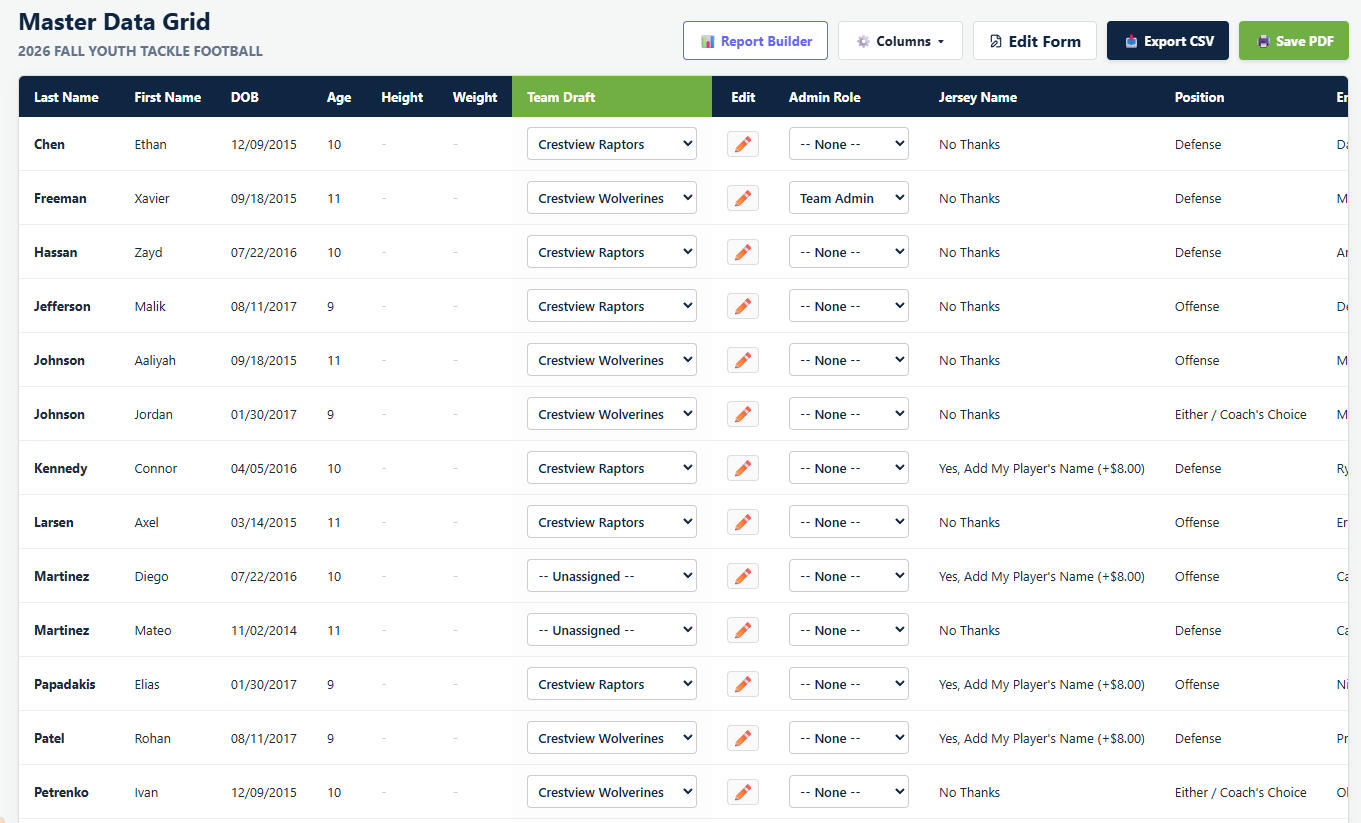
Because the change is instant, the grid is genuinely usable on draft night. You can sort by age or by a form answer, work down the column, and watch the teams fill up.
Find who is left
A player nobody has placed reads -- Unassigned -- in that column. That is your list of remaining work, and it is worth checking before you tell anybody the teams are final.

Sort by the Team Draft column and every unassigned player collects together, which is faster than reading down a list of eighty rows looking for a gap.
Moving a player
Change the dropdown to a different team. Playbook Logix takes them off the first team's roster and puts them on the second one, so you do not have to undo anything by hand. Setting it back to Unassigned takes them off entirely without touching their registration or their payments.
When a parent picks the team
There is a second route onto a roster that does not go through this screen at all. A team hub has its own registration link, and a player who registers through that link lands on that team directly. Coaches recruiting for their own roster tend to use it.
Those players show up in the grid already assigned. You can still move them like anyone else. See sharing your registration link for the difference between the two links.
Getting the teams out of the system
Once drafting is done, Export CSV gives you the whole grid as a spreadsheet, team assignments included. That is the file you send to whoever orders the uniforms or builds the schedule.
Next: the team's own page, where you add a jersey number, record a position and bring the coaching staff in. See managing your roster.
Common questions
Where do I assign players to teams?
Do I have to save after choosing a team?
How do I see who has not been assigned yet?
What happens to fees when I move a player to another team?
Can parents choose their own team?
Last updated September 21, 2026.
Ready to run your season on this?
Playbook Logix is free to start, and no credit card is needed.