
Help Center
How parents register for your league
What you will learn
- Find your registration link and share it
- Tell the program link apart from the team link, and know when each fits
- See exactly what a parent goes through, step by step
- Handle a family who cannot or will not register online
- Close registration on a date, on a number, or by hand
Takes about 5 minutes.
Learn how parents actually register for your league. This guide covers finding and sharing your registration link, what a parent sees when they open it, what happens if they do not have an account yet, and how to handle a family who cannot register themselves.
Before you start
- A program with its form built. See building your registration form
- Somewhere to put the link: an email list, a team chat, a flyer or your website
- The answers families will ask first, which are the cost and the closing date
Finding the link
Go to your programs list and find the program. Under it is a dark bar headed Share Registration Link: with the address already filled in and a Copy Link button beside it. That is the whole thing. The link is not secret and is meant to be shared: put it in an email, a text, a Facebook post, a flyer with a QR code, or on your league website.
Each program has its own link. If you are running a fall season and a winter clinic at the same time, they are two links, and sending the wrong one is the most common way a parent ends up registered for the wrong thing.
The team link is a different link
A team hub has its own Copy Team Registration Link button, which registers a player straight onto that team. Use the program link for general signups and the team link only when you mean to put somebody on one specific team, such as a coach recruiting for their own roster.
What a parent sees
The link opens the registration page for that program. If the parent is not signed in, they are asked to sign in or create an account first, and then sent straight back to where they were. They do not lose their place and do not have to find the link again.
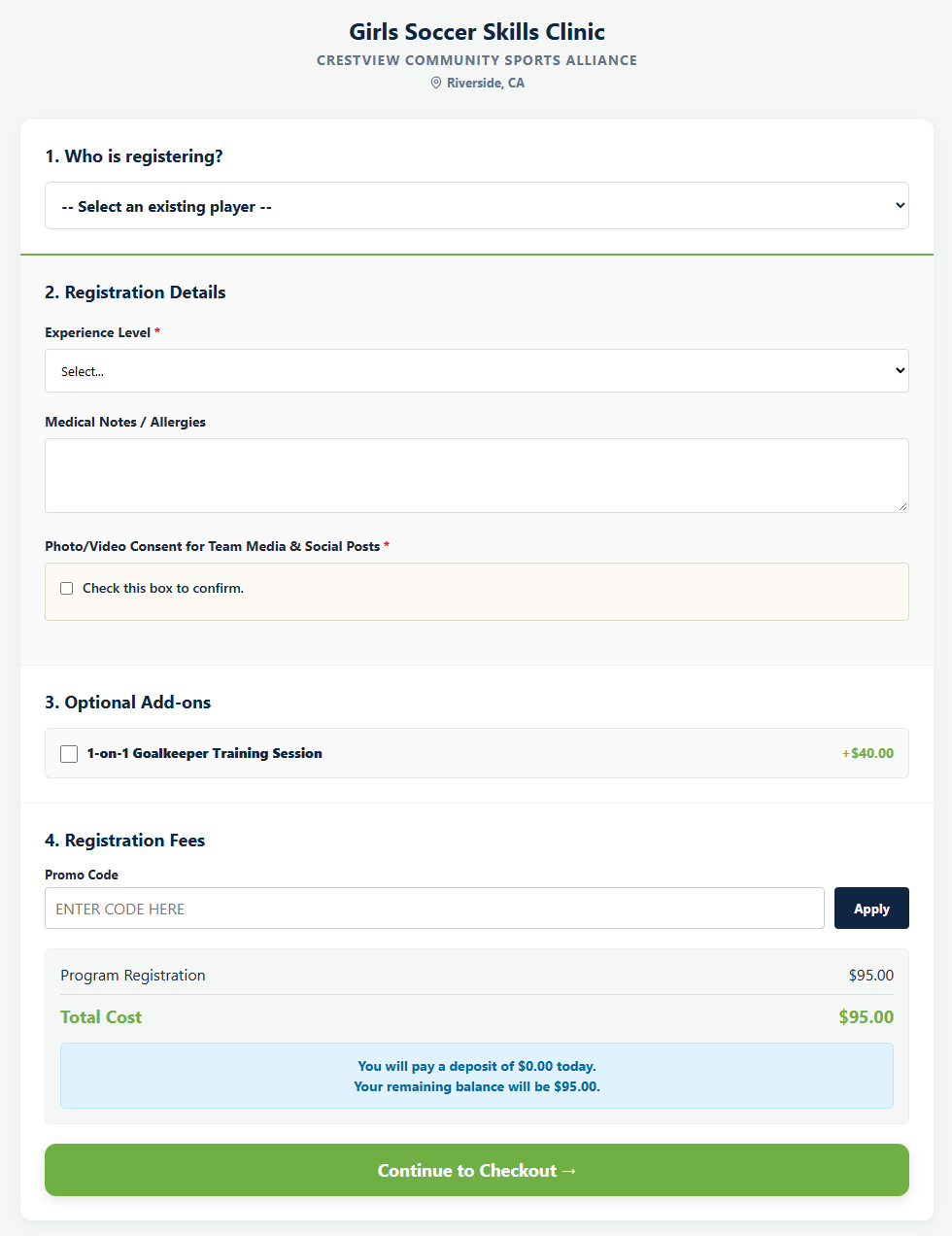
The page is one form in numbered sections, not a wizard, so a parent can see the whole thing before they start.
- Who is registering? They pick from the children on their account, or add a new one with a name and date of birth.
- Registration Details. The form you built, with anything you marked required blocking submission.
- Optional Add-ons. Uniforms, meals, anything optional you priced. This section is only there if you created add ons.
- Registration Fees. The total, the promo code box, and how they are paying. Sibling discounts apply on their own without anything being typed.
At the end the total is worked out once and frozen, and the registration appears on your submissions screen.
Families without an account
A parent who has never used Playbook Logix creates an account as part of registering. It asks for their name, email, phone, a password and whether they are a parent or a coach, and it costs nothing. Because the link carries them back to the registration afterward, this does not need explaining in your announcement email, and explaining it usually makes it sound harder than it is.
Keep your announcement short. What families need is:
- What the program is and who it is for
- What it costs
- When registration closes
- The link
Age limits and full programs
If you set a birthday window, a child who falls outside it still appears in the parent's list but cannot be selected, so the parent finds out before they fill anything in rather than after. A parent adding a new child with a birthday outside the window is told the player does not meet the age requirements for the program.
If the program is full or you have closed it, the link itself stops working and shows a Registration Closed page. That is worth knowing before you send a chase up email to a waiting list.
Both are worth mentioning in your announcement, because a parent who hits a wall with no warning emails you, and a parent who was told up front does not.
Registering a family yourself
Some families will not register online. A grandparent without an email address, a family who hands you a check at practice, a player you agreed to add after the deadline.
You can add a player directly from the roster and record their payment by hand. They still appear in your numbers and still owe what they owe. See managing registrations and payments.
Closing registration
A registration deadline closes it on a date. A maximum number closes it on a count. You can also close a program by hand. Without any of those, registration stays open.
If you want signups to slow rather than stop, a late fee does that more gently than a hard deadline, and still lets in the family who genuinely did not hear until last week. See setting registration fees.
Common questions
Do parents need an account before they can register?
Can I use one link for every program?
What is the difference between the program link and the team link?
What if a family cannot register online?
Can parents register more than one child?
How do I stop registrations?
Last updated September 21, 2026.
Ready to run your season on this?
Playbook Logix is free to start, and no credit card is needed.