
Help Center
How to set up online sports registration
What you will learn
- Pick the right program type, and know why it cannot be changed
- Name the season and set its sport
- Limit registration by age and cap the number of players
- Set the fee, and decide whether families can pay in installments
- Choose who absorbs the card processing fee
Takes about 10 minutes.
Learn how to open online registration for a youth sports program in Playbook Logix. This guide covers choosing the program type, setting the fee, limiting who can sign up by age, capping the number of players, and getting the program to the point where a parent can register.
In Playbook Logix a program is the season. It is the thing parents register for and the thing money is attached to. Teams sit inside a program, and rosters sit inside teams. Create the program first and everything else hangs off it. For the whole model in one place, see how organizations, programs and teams fit together.
Before you start
- An organization already created in Playbook Logix
- The sport, the season name and roughly when registration should close
- Your fee, and the age range you are willing to accept
- A Stripe account, if you want to take card payments. You can add this later
Choose the program type
From your dashboard, open the organization you want to add to and click Create Program / Season. The first thing you pick is the type, and there are three.
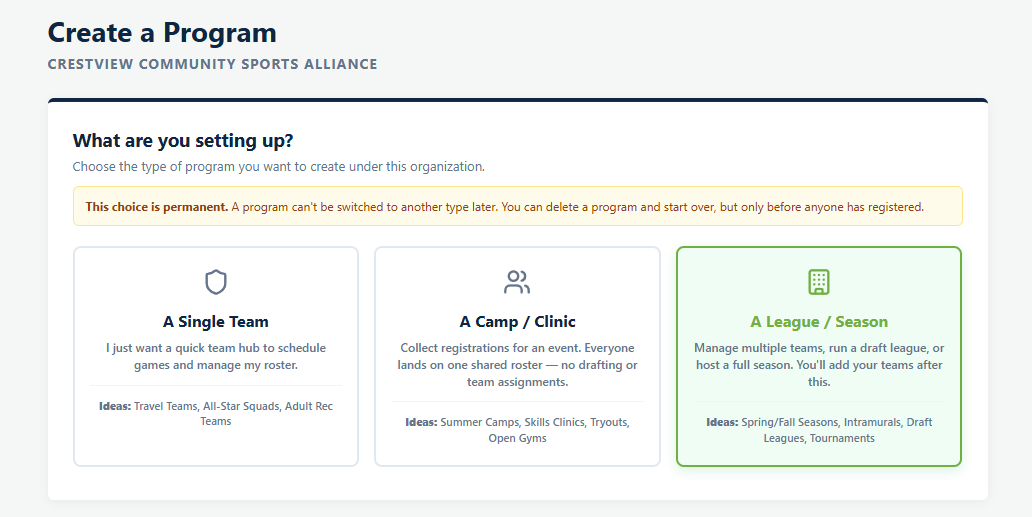
A Single Team
One team, and everyone who registers lands on it. Pick this if you coach one travel team, one all star squad or one adult rec team and you mainly want a place to schedule games and keep a roster. There is no drafting step because there is nowhere else for a player to go.
A Camp / Clinic
Registrations come in but nobody is assigned to a team. Pick this for summer camps, skills clinics, tryouts and open gyms, where you need the signups and the money but the roster is the attendance sheet. Players stay as individuals.
A League / Season
Multiple teams under one registration. Everyone who registers goes into a holding pool, and you draft them onto teams afterward. Pick this for a spring or fall season, intramurals or a draft league. This is the default because it is what most organizations are running.
Name it and pick the sport
Program / Season Name is what parents see, so write it the way they would say it: "2026 Fall Youth Tackle Football" rather than "FB26". If you picked A Single Team, this field is labeled Team Name instead, because for a one team program they are the same thing.
Sport is required. Pick one from the list, or choose Other / write in and type your own, which is what you want for kickball, pickleball, cornhole or anything else the list does not carry.
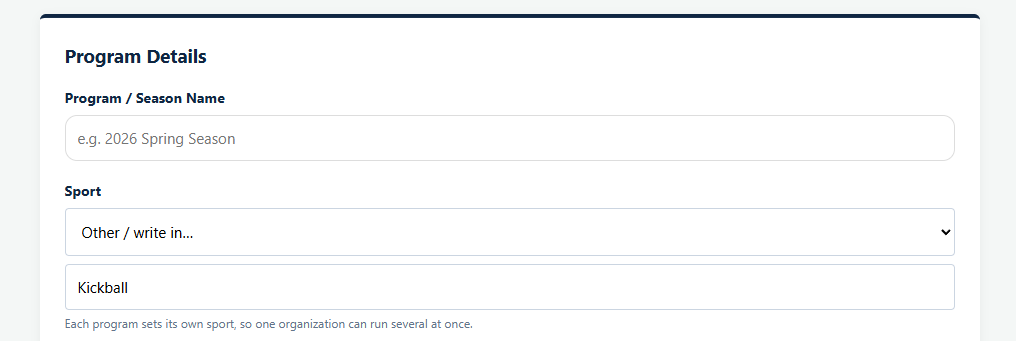
The sport lives on the program, not on your organization, which is what lets one club run baseball, softball and basketball at the same time without anything fighting. Public Description / Blurb appears on your organization's public page, so it is worth writing a sentence a stranger would understand.
Program Audience
Youth or adult. This matters more than it looks: a youth program expects a parent or guardian to sign alongside the athlete, and an adult program expects the participant to sign for themselves. Waivers and registration forms follow this setting.
Set who can register and how many
Registration Deadline is optional. Leave it empty and registration stays open until you close it.
Max Registrations caps the program. On a paid program you also get What counts towards the limit?, which decides whether a half paid registration takes a spot or only a fully paid one does. On a free program the question does not come up and every registration counts.
Earliest Birthday Eligible and Latest Birthday Eligible restrict by age. Set these as dates rather than ages, because a birthday window is what an age group actually is and it does not drift as the season runs. A parent whose child falls outside the window is told at registration rather than after they have paid.
Set the fee
The money section opens with a checkbox: I am charging a registration fee for this program. It is already checked. Clear it and every money setting disappears, which is what you want for a free program. A free program can still offer add ons later, but promo codes, sibling discounts and date driven pricing are switched off, because there is no base fee to take anything off.
Total Registration Fee is the base price, before add ons and before any discount.
Payment Collection Method
Three choices. This is not about which card or app you accept. It is about whether a family has to pay the whole thing today.
- Pay in Full Only is the default. The fee is due at registration.
- Manual Payment Plan takes a deposit today. The family logs back in and pays the rest when they can, and chasing the balance is on you.
- Auto-Pay Subscription takes a deposit and then charges the balance automatically through Stripe. You choose between a fixed total, like a $500 season, and an ongoing membership, like $50 a month with no end date.
The two payment plan options depend on your Playbook Logix plan. If yours does not include them they still appear, marked as locked.
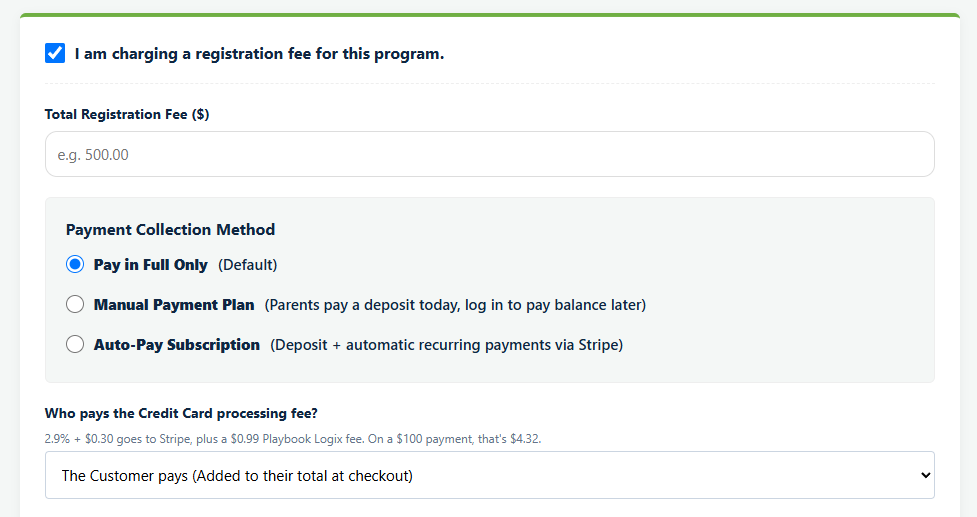
Pick either plan and more fields appear. Minimum Deposit Required Today is what the family pays at registration to hold the place. Require Add-ons & Form Options to be paid upfront decides whether the extras can be spread across the plan or have to be settled now, and it is worth turning on for anything you order in bulk. Auto-Pay adds Billing Frequency and Number of Installments, and works out the installment amount for you as you type.
Who pays the card processing fee
Two options. The Customer pays adds the fee to the family's total at checkout. The Organization pays takes it out of your payout. The page shows the real numbers while you decide: 2.9% plus $0.30 goes to Stripe and there is a $0.99 Playbook Logix fee, so a $100 payment carries $4.32.
There is no universally right answer, but be consistent across your programs, because families compare notes.
Venmo, Cash App, Zelle and PayPal
Further down the same page is a Payment Methods block for your Venmo username, Cash App cashtag, Zelle contact and PayPal. Read the line above it before you type: these are saved to your organization, not to this program, so changing them here changes them everywhere.
A payment that arrives through one of these, or as cash or a check, is one you confirm by hand afterward. The parent tells Playbook Logix they have paid, it sits as pending, and you verify it. See managing registrations and payments.
Everything here can be changed afterward in program settings, and there is a separate pricing screen for add ons, promo codes, sibling discounts and early bird pricing. See how to set registration fees and payment plans.
Add teams, if you have them
For a League / Season you can list your teams right here in the Teams (Optional) box, one per line. You can also skip it and add teams later. For a Single Team or a Camp / Clinic, Playbook Logix creates the team hub for you, because there is only one.
What happens next
Saving the program creates it and puts it on your dashboard. Nobody can register yet in any useful way, because the form still asks nothing. The next step is building the registration form, and after that you share the registration link with families.
Common questions
Can I change the program type after people have registered?
Can I run more than one sport in the same organization?
What happens if a program fills up?
Do I have to charge a fee?
Can parents pay by check or cash?
Last updated September 22, 2026.
Ready to run your season on this?
Playbook Logix is free to start, and no credit card is needed.