
Help Center
How to schedule a practice or a game
What you will learn
- Add a practice, game or meeting to a team schedule
- Choose an event type, and why it matters on the calendar
- Save the fields and gyms you use so you never retype an address
- Give families tappable directions and parking instructions
Takes about 3 minutes.
Learn how to put a practice, game or meeting on a team schedule in Playbook Logix, and how to save the fields you use so you never type an address twice.
Open the team and click + Add Event from its schedule. The page is headed Add to Schedule.
Before you start
- A team with a roster. See creating a team
- The address of wherever you play, if you have not saved it yet
Fill in the basics
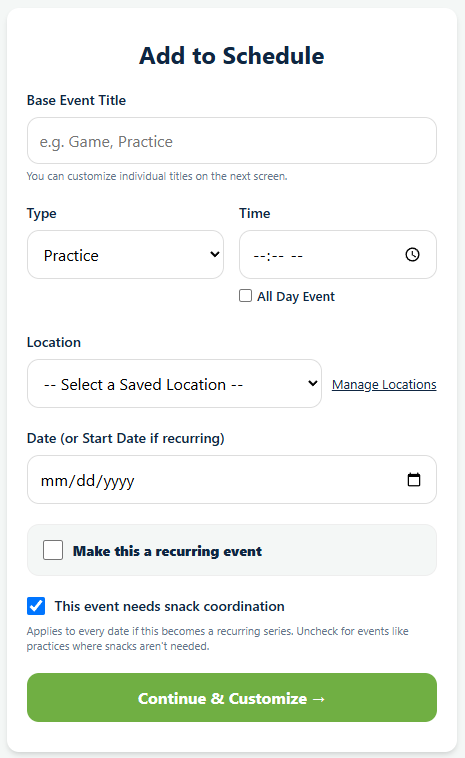
Base Event Title is what families see. "Practice" is fine for a practice; a game is usually better as "vs Northside" so the calendar tells somebody something at a glance.
Type is Practice, Game, Tournament, Meeting or Other, and you can type your own if none of those fit. It drives the label on the calendar and lets people tell a game from a practice without reading the title.
Time is when it starts. Tick All Day Event instead for a tournament or anything without a useful start time.
Pick a location
Location offers your saved locations in a dropdown, or you can type a one off. Saved locations are worth setting up, and the next section covers why.
Set the date
Date is the day it happens, labeled "Date (or Start Date if recurring)" because the same field starts a series when you tick Make this a recurring event. For one event, leave that box alone. For a season of practices, see scheduling a whole season.
Decide about snacks
This event needs snack coordination is ticked already. Clear it for practices, where snack duty is usually more organizing than anybody wants, and leave it on for games.
Continue and customize
Continue & Customize takes you to a second screen where you confirm the event before it is created, then Save to Schedule puts it on the calendar.
Saving your fields and gyms
Click Manage Locations, from the event form or the schedule, and save the places you play. Then they are a dropdown choice forever instead of an address you retype and misspell.
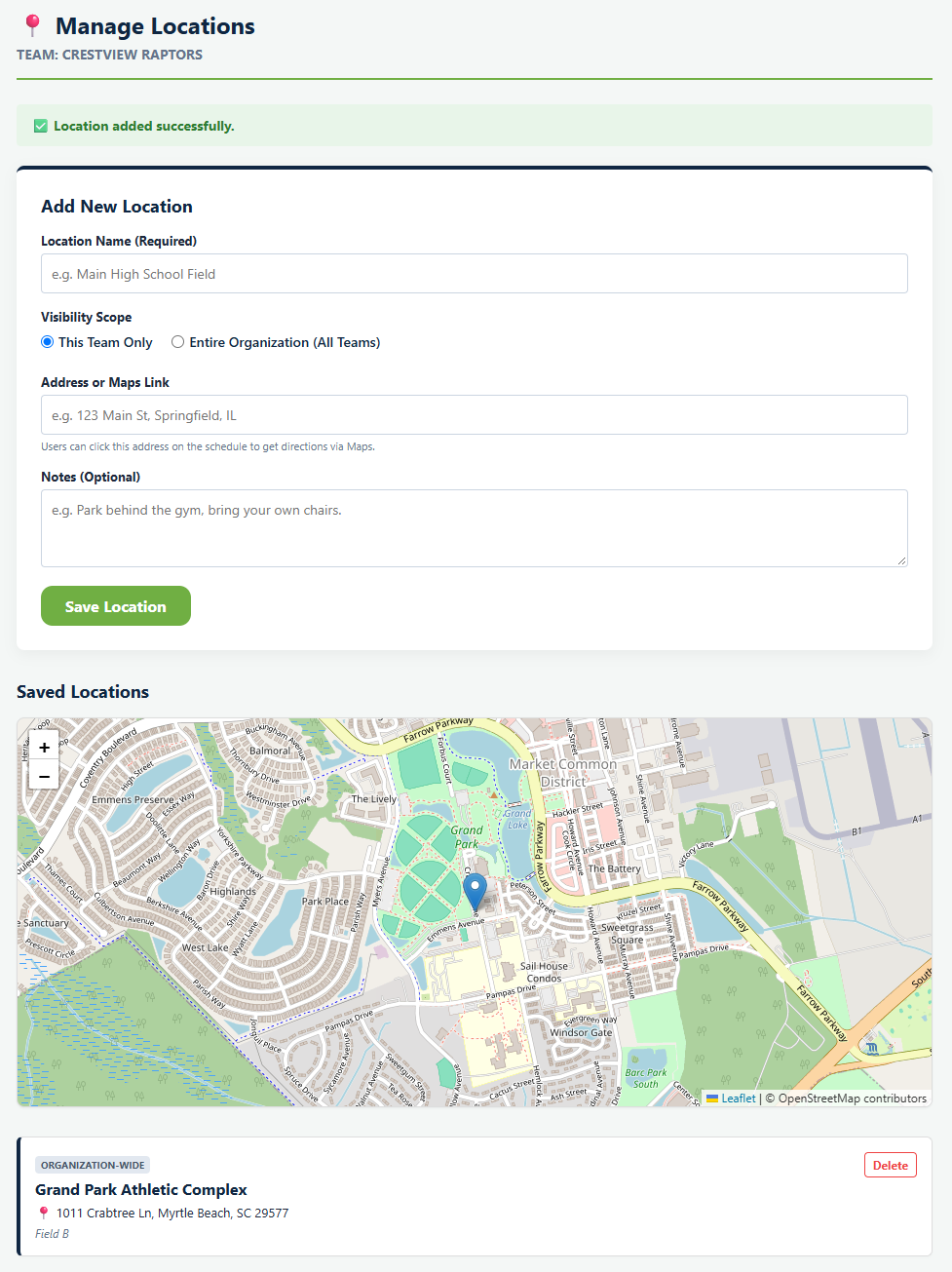
Four fields, and each one earns its place.
- Location Name is what shows on the schedule. Use what people call it, not its official name.
- Visibility Scope is either This Team Only or Entire Organization (All Teams). Save your main field organization wide and every coach in the club gets it in their dropdown without asking you for the address.
- Address or Maps Link becomes a link on the schedule, so a parent driving to an away game taps it and gets directions. This is the field that saves you the most phone calls.
- Notes is for the thing the address does not tell anybody: which entrance, where to park, that the gym is behind the school rather than in front of it.
Saved locations appear on a map underneath, which is a quick way to spot the one somebody typed in wrong.
What happens next
The event appears on the team schedule, and families can start saying whether they are coming. See RSVPs and attendance.
If you are still deciding how often to practice and for how long, that question comes before this one. See how to build a practice schedule.
Common questions
What event types can I choose?
Why is there a second screen for one event?
Can I reuse a field without retyping the address?
Can parents get directions to an away game?
How do I stop being asked about snacks?
Last updated September 21, 2026.
Ready to run your season on this?
Playbook Logix is free to start, and no credit card is needed.