
Help Center
How to email or text your team
What you will learn
- Send an email, a text, or both from one screen
- Pick everybody, one team, or four individual people
- Keep a text inside the one message limit
- Understand who is missing from the list and why
Takes about 2 minutes.
Learn how to email or text a whole organization, one program, one team or a handful of people in Playbook Logix, and what it costs against your monthly allowance.
Open the Communication Hub. It is one screen: you write on the left and choose who hears it on the right.
Before you start
- An organization with at least one team
- Something worth sending, which is a higher bar than it sounds
Choose email, text or both
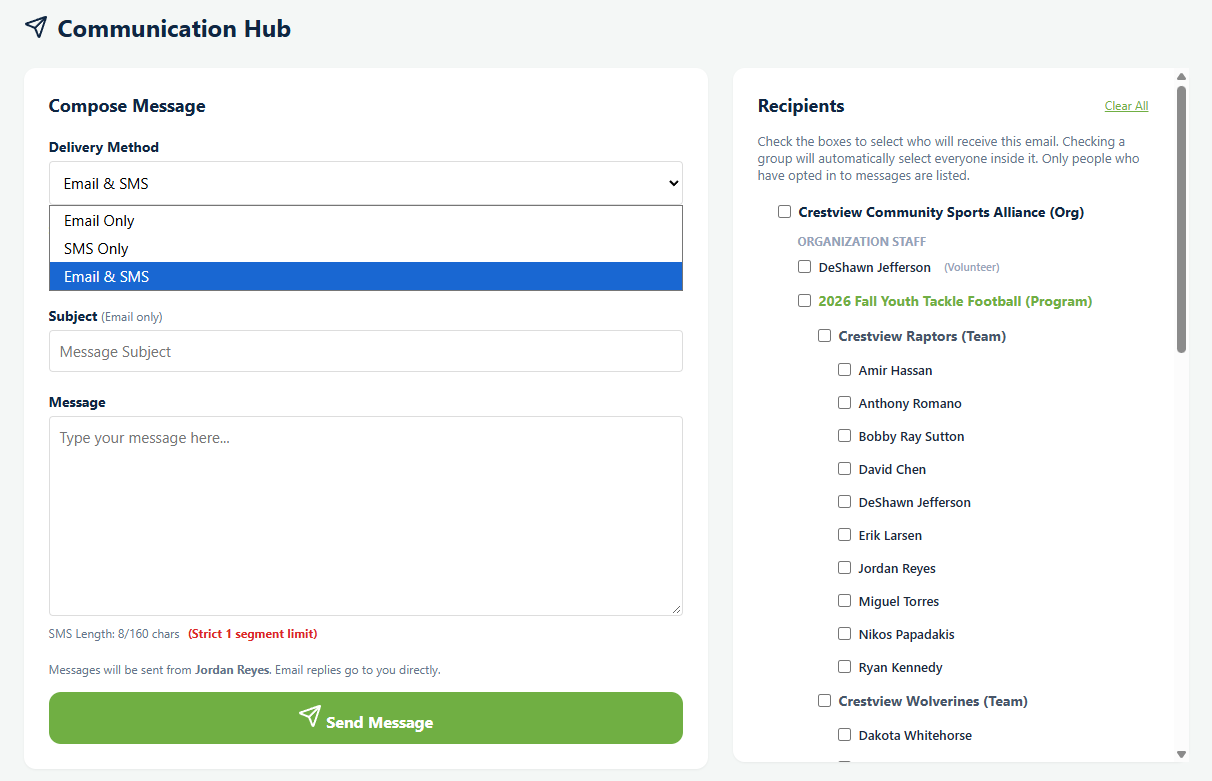
Delivery Method offers Email Only, SMS Only and Email & SMS. The subject line only applies to email, and the page says so beside it.
Pick who hears it
The Recipients panel is a tree, and checking anything checks everything inside it. So one control covers both "the entire club" and "these four parents".
- The organization, which selects everybody below it.
- Organization Staff, listed by name with their roles.
- A program, and its Direct Registrants (No Team), which is how you reach people who registered but have not been drafted yet.
- A team, and every person on it.
- One person, by ticking just their name.
Clear All resets the whole tree, which is worth using between messages rather than unticking your way back.
Send
Messages go out under your name, and email replies come straight back to you rather than disappearing into a no reply address. That is worth knowing before you write something that invites a reply from ninety families.
For a text you can set the sender name that appears at the front of the message, which is how a parent knows who is texting them from a number they do not recognize.
Your monthly allowance
Email and SMS both come out of a monthly allowance that depends on your organization's plan. Playbook Logix checks before sending, and if a message would take you over the limit it refuses the whole send and tells you the number rather than delivering part of it.
When to use this rather than the message board
Use the Communication Hub when the message has to reach people who are not going to open the app. A cancellation, a deadline, anything with a date attached.
Use the message board when the message can wait for somebody to look, or when you want a conversation rather than an announcement. See the team message board, and how to communicate with sports parents for choosing between them.
Common questions
How do I text my whole team at once?
Why is the text limited to 160 characters?
Why can I not see some parents in the list?
Where do replies go?
What happens if I go over my monthly limit?
Last updated September 21, 2026.
Ready to run your season on this?
Playbook Logix is free to start, and no credit card is needed.