
Help Center
How to create and fill volunteer jobs
What you will learn
- Post a volunteer job on a single event
- Put the same job across a whole season in one action
- Read the fill counters and spot what is still short
- Assign a volunteer yourself, and remove one who drops out
Takes a couple of minutes.
Learn how to post volunteer jobs in Playbook Logix, put the same job on a whole season of events at once, read the fill counters, and assign somebody yourself when a slot will not fill on its own.
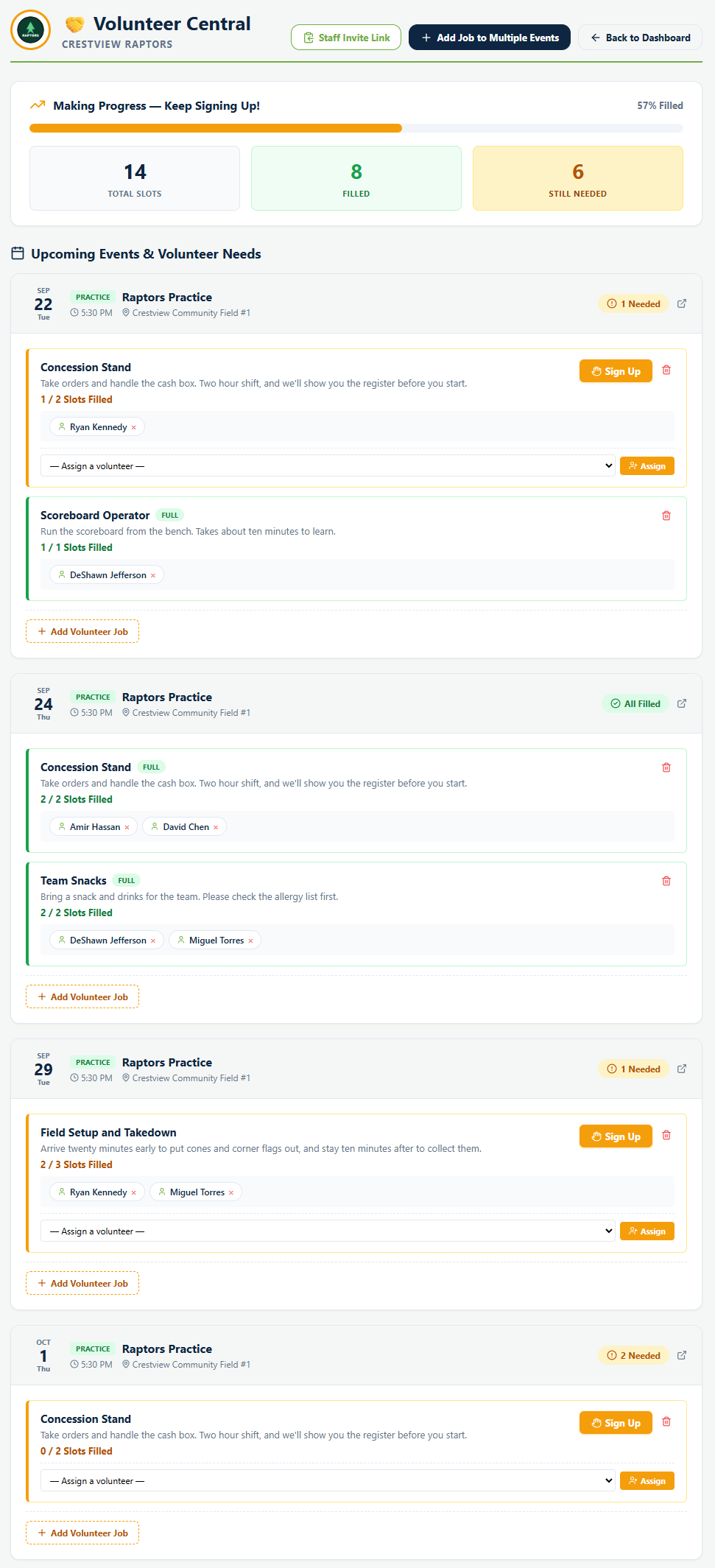
Open Volunteer Central for a team. Everything about that team's volunteering lives on this one page, organized by event.
Before you start
- A team with events already on its schedule
- Coach or manager access to that team, or organization admin
Add a job to an event
Each event in the list has an Add Volunteer Job button underneath it. That opens a short form with three fields.
- Job Title, what the person will be doing. The field suggests chain gang or concessions.
- Slots, how many people you need. One for a scoreboard, four for a concession stand.
- Description (Optional), which is optional in the software and not optional in practice.
Save Job posts it, and everybody on the team gets a notification that a new volunteer job exists.
Post one job across a whole season
Most jobs are not for one game. You need a scoreboard operator at every home game, and adding that twelve times by hand is how a good idea dies in week two.
Add Job to Multiple Events at the top of the page opens a dialog with the same three fields plus a list of your upcoming events and a checkbox against each one. Check the events you want and it creates the job on all of them at once.
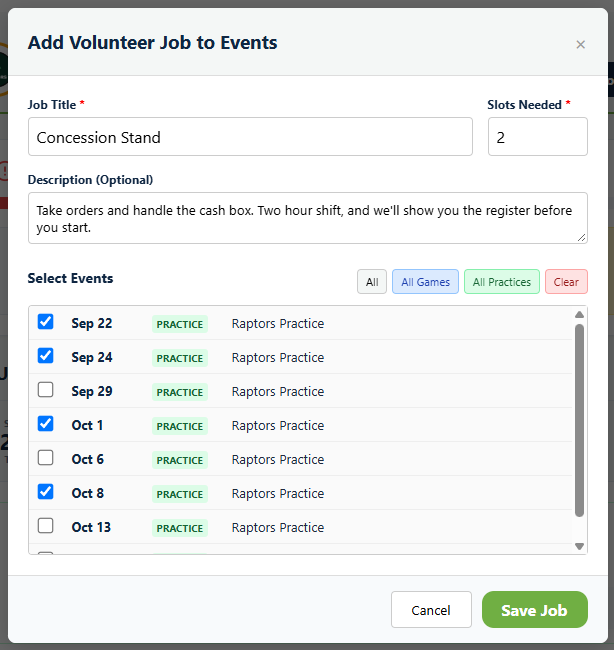
The All Games and All Practices buttons above the list select by event type, which is usually exactly what you want. Concessions belong on games. Field setup belongs on both. Clear starts over.
Read the counters
The bar across the top of Volunteer Central covers every upcoming event together: Total Slots, Filled and Still Needed, with a progress bar that turns from red through amber to green as the season fills.
Each event then carries its own badge, either a count of how many volunteers it still needs or All Filled. Each job shows its own count, reading something like 1 / 2 Slots Filled, and a job with every slot taken is labeled FULL.
Volunteers who have signed up appear by name underneath the job, so you know who to expect without asking anybody.
The team schedule carries the same information in one line per event, as a Volunteers Needed or Volunteers Full badge that links straight to the event. Scanning that down a season is the quickest way to find the games nobody has signed up for.
Assign somebody yourself
Some slots will not fill on their own, and at some point you will have talked to a parent at practice who said yes in person. Under any job that still has room there is a dropdown reading Assign a volunteer, listing the approved staff and volunteers in your organization.
Each name carries its approval area in brackets, either Org-wide or the specific program or team they were approved for, so you can tell at a glance whether the person you are about to assign is generally available or only signed up to help with one team.
The list only contains people your organization has already approved as staff, coaches or volunteers. If somebody is missing from it, they have not applied or have not been approved yet. See adding coaches and volunteers.
The small cross beside a volunteer's name removes them from that job, which is what you want when somebody tells you at the last minute that they cannot make it.
Deleting a job
The trash icon beside a job removes it. It takes the signups with it, so if two people had already claimed slots, they are no longer signed up and nothing tells them. Worth a message if it was a job anybody had committed to.
What happens next
Posted jobs are visible to families straight away, but only approved volunteers can claim one. That approval step catches people out, so it is worth understanding before you wonder why nobody is signing up. See how families volunteer.
Snacks and rides work differently and are not volunteer jobs at all. See snacks and carpools.
Common questions
Where do I create volunteer jobs?
How do I add the same job to every game?
Why can I not see a job I created?
Can I assign a volunteer instead of waiting?
How do I see which events still need volunteers?
What happens if I delete a volunteer job?
Last updated November 8, 2026.
Ready to run your season on this?
Playbook Logix is free to start, and no credit card is needed.