
Help Center
How to build a team website
What you will learn
- Assemble a page from blocks, and the four worth starting with
- Add extra pages and what their addresses look like
- Preview privately, then publish or unpublish
- Why a stale site is worse than no site
Takes about 20 minutes.
Learn how to build a public website for a team in Playbook Logix from drag and drop blocks, add more pages to it, preview it before anybody else can, and publish it when you are ready.
Open Website Builder from a team. You are building a real public page, not a profile inside the app, and it gets its own web address.
Before you start
- A team, and a plan that includes the website builder
Add blocks
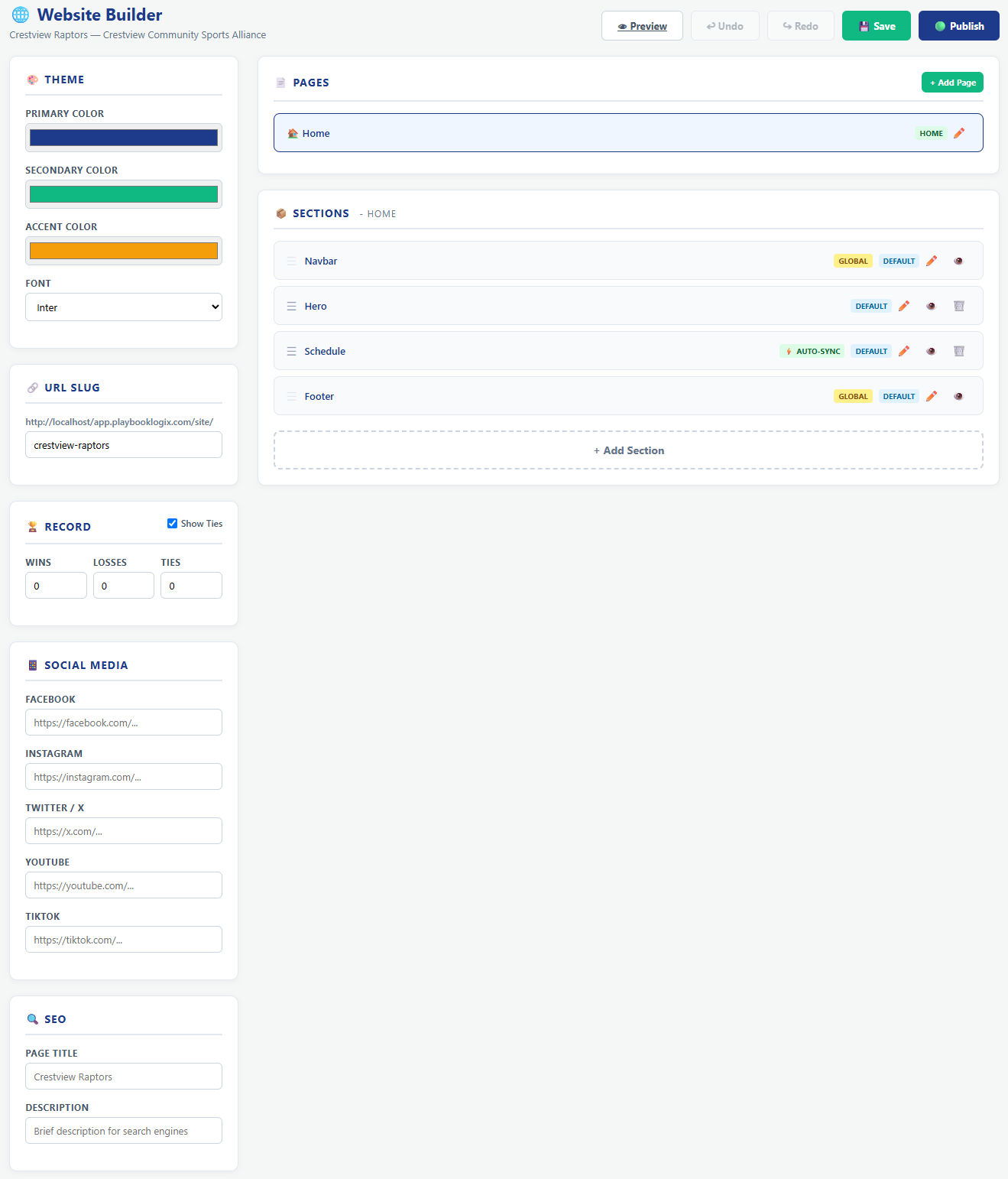
A page is a stack of blocks, added from a palette and reordered by dragging. There are nineteen, covering a navigation bar, a hero banner, text, images, video, news, sponsors and more.
Most take content you type. Two of them read live data from the team instead and keep themselves current, and two more are badged as though they do. See the blocks, and which ones update themselves.
The sidebar, which is not just blocks
Down the left are panels that apply to the whole site rather than to one block, and they are easy to scroll past.
- Theme, a primary, secondary and accent color plus a font. Set these first, because every block inherits them.
- URL Slug, your web address.
- Record, the wins, losses and ties the Standings block prints, typed by hand, with a Show Ties checkbox for sports that do not have them.
- Social Media, links for Facebook, Instagram, X, YouTube and TikTok, which feed the Social Links block.
- SEO, the page title and description a search engine shows.
Add pages, if you need them
A site can have more than one page. Each gets its own address underneath the main one, so a page called schedule lives at your site address followed by /schedule.
Most teams need one page. Add more when a single page genuinely gets too long, which usually means you have a lot of news or a separate section for sponsors.
Preview before anybody sees it
A new site is unpublished, and stays that way until you say otherwise. Anybody who reaches the address before then gets a Coming Soon page rather than a half-built one.
You can preview it yourself while it is still private, which is the only honest way to check it. The builder's own view is close but not identical, and a preview is what catches the hero image that looked right in the editor and is unreadable on the page.
Publish
Publish makes it live. The same button unpublishes it again, which takes it straight back to Coming Soon and is the right move if something goes up that should not have.
Before you publish, it is worth knowing exactly what the site puts out there. See what your team site shows the public.
Your web address
The site lives at app.playbooklogix.com/site/ followed by its slug, using letters, numbers and hyphens.
Keeping it worth visiting
The failure mode for a team website is not looking bad, it is being out of date. A site still advertising last season is worse than no site, because it tells a visitor the organization is not paying attention.
- Lean on the two live blocks. Schedule and Coaching Staff read from the team and stay current on their own. Standings looks like it does and does not, so its numbers are one of the things you have to remember. See the blocks.
- Be careful with dates you type. "Registration closes March 1st" in a text block is a promise to come back and edit it. A join block that reflects your real program is not.
- Unpublish between seasons if you are not going to keep it current. Coming Soon is a better look than a stale page.
What happens next
For a page that lists every program your club is running rather than one team, you already have one and it needs no building. See your public organization page.
Common questions
How do I build a team website?
Is the website builder on every plan?
Can a team website have more than one page?
Can people see my site while I am still building it?
What is the web address of a team site?
Last updated September 23, 2026.
Ready to run your season on this?
Playbook Logix is free to start, and no credit card is needed.