
Help Center
How to share documents with your families
What you will learn
- Upload a document and choose exactly who can see it
- Pick between organization, program and team level
- Keep the list short enough that families still open it
- Tell a resource apart from something that needs signing
Takes a couple of minutes per document.
Learn how to upload a handbook, a code of conduct or a schedule once in Playbook Logix, and choose whether one team, one program or the whole organization can see it.
Open Manage Organization Resources. The page describes itself plainly: documents you provide for parents and players to download.
Before you start
- The file itself, under 5MB
- A decision about who actually needs to see it
Uploading a file
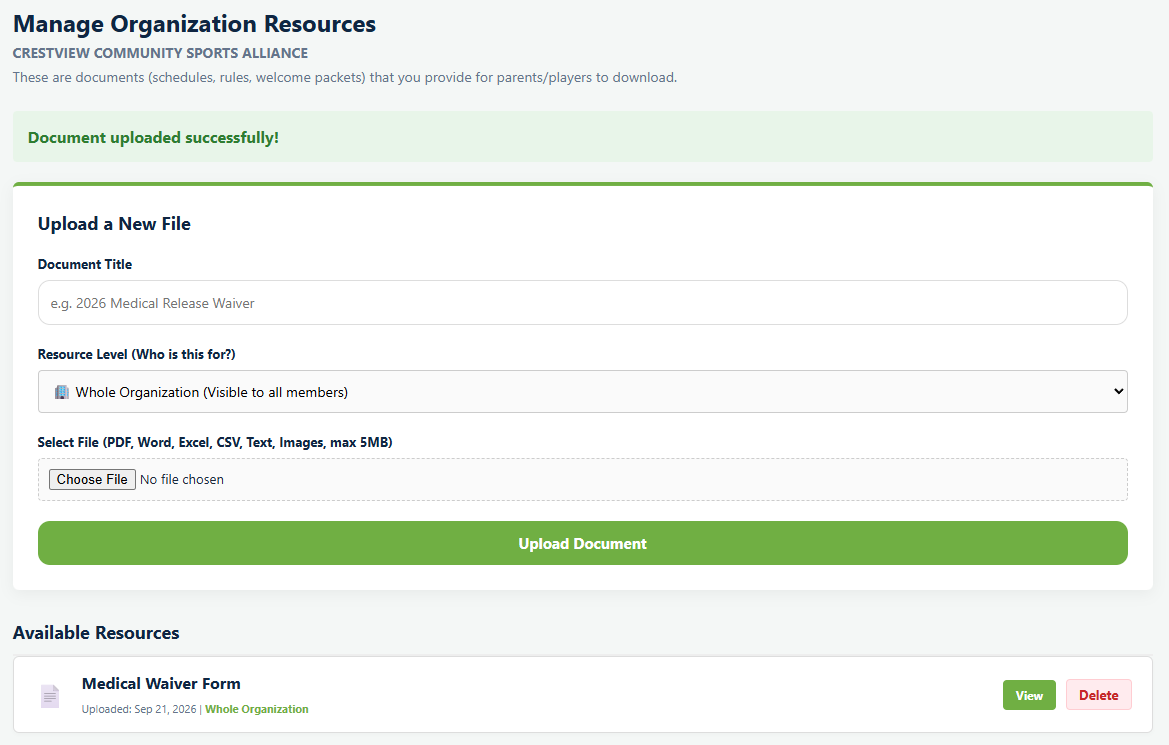
Document Title is what families see in the list, so write it as they would look for it. "2026 Parent Handbook" beats "handbook_final_v3".
Resource Level is the one that matters, and it has three settings.
- Whole Organization, visible to everybody in the club. Codes of conduct, the parent handbook, your refund policy.
- A program, visible to everybody registered for one season. The tournament information, the season schedule, the uniform order form.
- A team, visible to that roster only. The practice plan, the carpool list, anything that would be noise to the rest of the club.
Select File accepts PDF, Word, Excel, CSV, text and images, up to 5MB each.
What families see
Resources appear for the people the level includes, with a download link. Nothing is sent, so a document you upload silently is a document somebody has to go looking for. Mention it once in a message or a message board post when it matters.
Keeping the list usable
The list is the whole feature, so its length is the whole risk. Three habits keep it worth opening.
- Delete last season's version when you upload this season's. Two handbooks with different years is worse than one, and somebody will read the wrong one.
- Put the year in the title of anything that expires. "Code of Conduct" is fine forever; "Schedule" is not.
- Use the team level for team things. Most clutter in an organization wide list is something that concerned one roster.
The other direction
This page is for files you give families. Files families give you, like a physical or a birth certificate, work the other way round and live on their own screen. See collecting player documents.
And if what you want is not a file to download but a document to be signed, that is a policy rather than a resource. See creating and collecting waivers.
Common questions
What file types can I upload?
Who can see a document I upload?
Are these files public on the internet?
Do families get told when I upload something?
What is the difference between a resource and a waiver?
Last updated November 3, 2026.
Ready to run your season on this?
Playbook Logix is free to start, and no credit card is needed.